Introduction
How to create images from text using AI for free might sound complicated at first… but honestly, it’s much easier than you think.
Let’s be honest…
At some point, you’ve probably imagined something cool — maybe a thumbnail, a logo idea, or just a random creative scene — and thought:
“I wish I could turn this into an image.”
But then reality kicks in. No design skills. No budget. And yeah… no idea where to start.
Here’s the thing though…
You don’t actually need any of that anymore.
In fact, there are many free AI tools available today — you can explore more on our website.
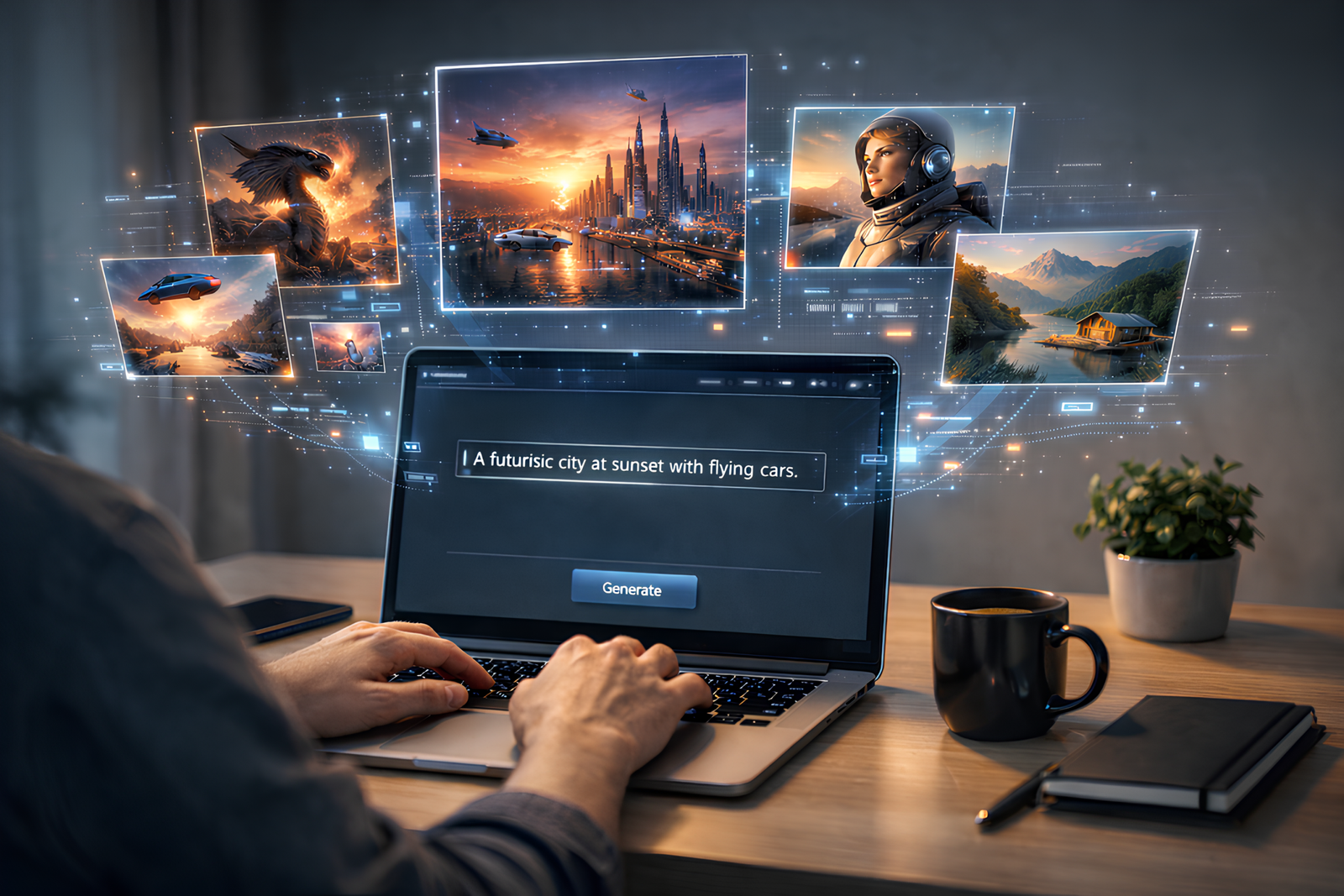
Right now, you can literally type a sentence… and AI will turn it into an image in seconds. Sounds a bit unreal at first — but once you try it, it just clicks.
And not just random images — we’re talking thumbnails, social media posts, digital art, even realistic-looking photos.
So if you’ve ever felt stuck because you “can’t design,” this is where things start to change.
In this guide, I’ll show you how to actually get good results.
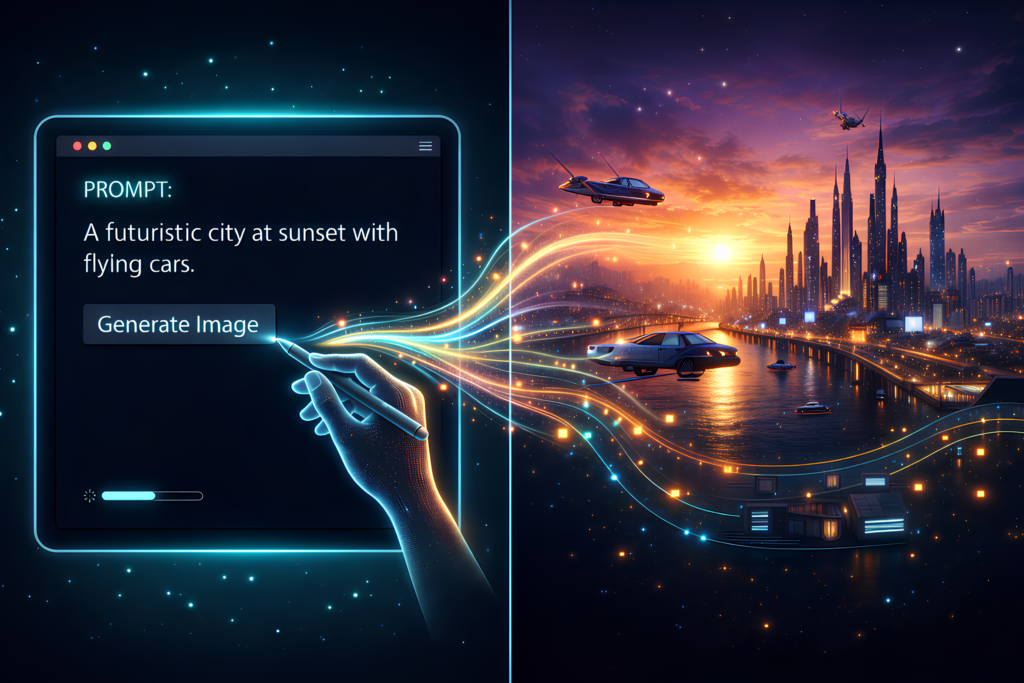
If you’re wondering how to create images from text using AI for free, you’re in the right place — we’ll break it down step by step.
If you’re wondering how to create images from text using AI for free, you’re in the right place — we’ll break it down step by step.
Quick Answer
To create images from text using AI for free, follow these steps:
- Choose a free AI image generator (Bing, Craiyon, Firefly)
- Write a detailed prompt
- Click generate
- Improve your prompt
- Download the best result
👉 The better your prompt, the better your image.
What is AI Image Generation?
Here’s a simple way to think about it…
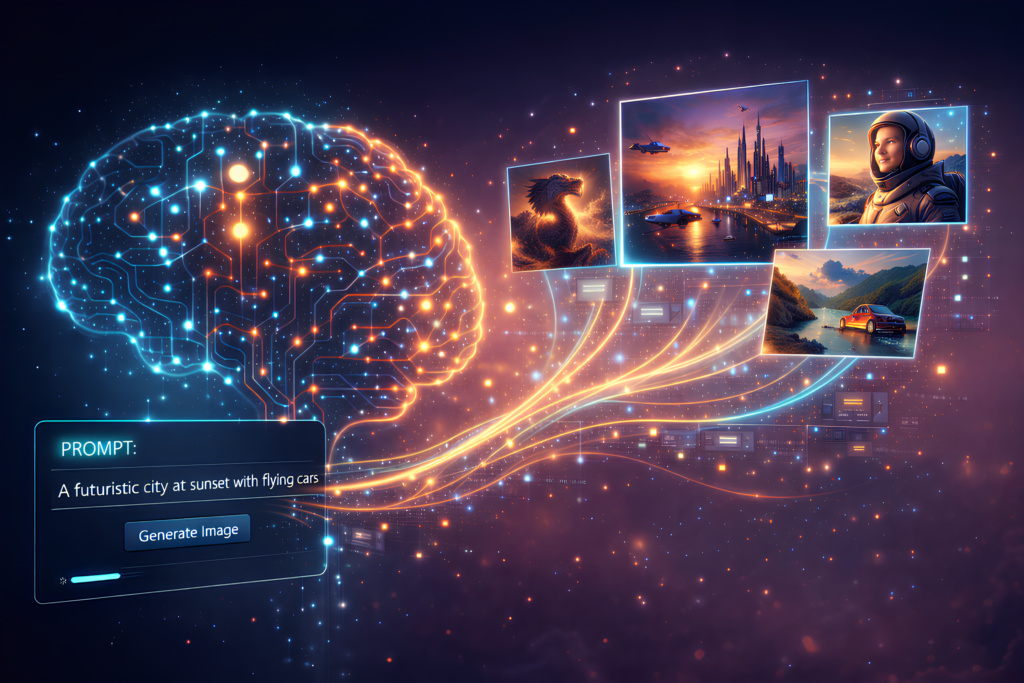
AI image generation is like giving instructions to a super-fast artist — except it never gets tired.
You type something like:
👉 “a futuristic city at sunset with flying cars”
…and within seconds, it creates it.
Here’s where it gets interesting…
The AI doesn’t “imagine” like humans. It learns from patterns — millions of images — and uses that to build something new.
So naturally, the clearer your description, the better the result.
This is exactly why learning how to create images from text using AI for free becomes much easier once you understand how prompts work.
It’s kind of like ordering food — vague input = random output 😄
Once you realize that, everything starts to make more sense.
Best Free AI Tools to Create Images from Text (Compared)
Let’s keep things simple so you don’t get overwhelmed right away.
These tools make it easier to understand how to create images from text using AI for free, even if you’re just starting.
| Tool | Best For | Quality | Ease | Limit |
|---|---|---|---|---|
| Craiyon | Testing | Low | Very Easy | Unlimited |
| Bing Image Creator | Best overall | High | Easy | Daily limit |
| Adobe Firefly | Content creators | High | Easy | Limited |
| Stable Diffusion | Advanced users | Very High | Medium | Unlimited |
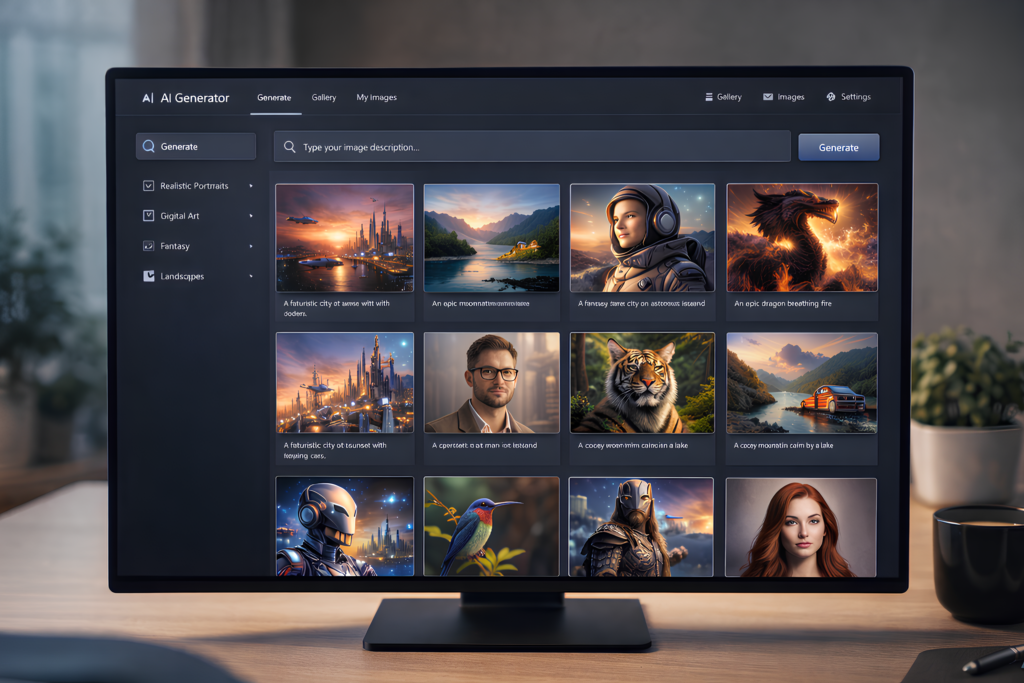
You can also explore more free AI tools for students and creators on our website to discover additional options.
Tools like Bing Image Creator and Adobe Firefly are among the most reliable platforms to create images using AI.
If you’re trying to understand how to create images from text using AI for free, these tools are a great place to start.
🔍 Which tool should YOU choose?
If you’re wondering where to start, here’s a quick way to think about it:
- Want best quality fast → Bing Image Creator
- Just experimenting → Craiyon
- Want more control → Stable Diffusion
👉 Honestly, if you’re a beginner, just go with Bing and start there. You can always explore others later.
How to Create Images from Text Using AI for Free (Step-by-Step Guide)
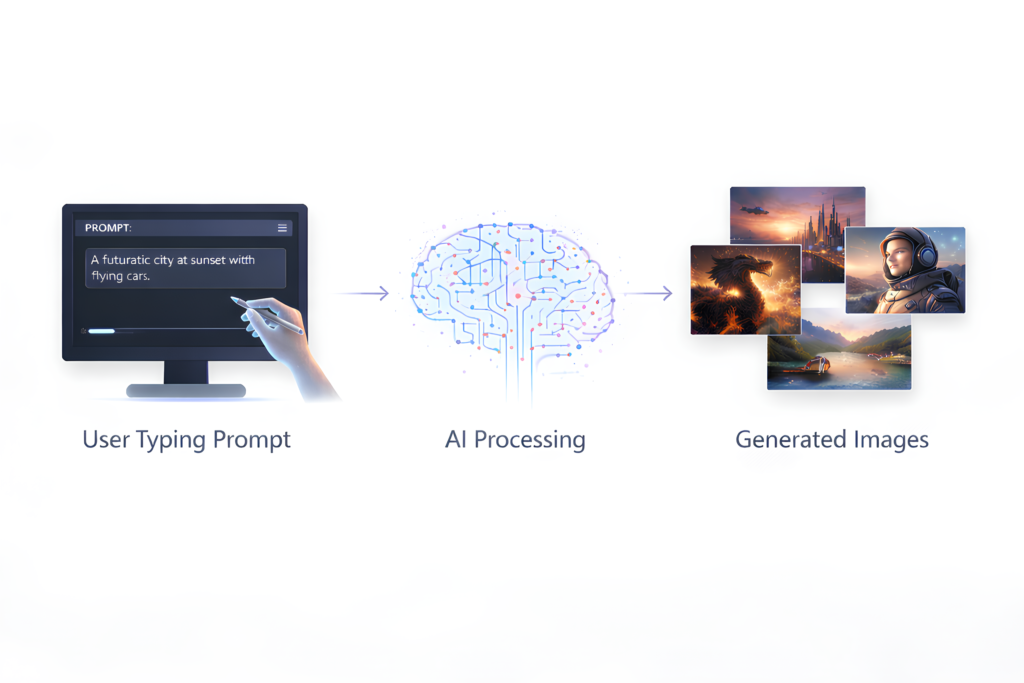
Alright, let’s actually do this — step by step.

Step 1: Choose Your Tool
Start with Bing or Craiyon. Don’t worry about picking the “perfect” one.
Step 2: Write Your Prompt
This is where most beginners get stuck (and that’s totally normal).
Bad:
❌ “cool image”
Better:
✅ “a realistic lion sitting on a rock during sunset, golden light, cinematic style”
It’s a small change, but the results feel completely different.
Step 3: Generate
Click generate and give it a few seconds.
Usually, you’ll get multiple variations — which is actually helpful.
Step 4: Improve (This is the real trick)
But wait — this is important…
Your first result is rarely perfect. And honestly, it shouldn’t be.
Try this instead:
- Add more details
- Change the style
- Adjust lighting or mood
This little process of tweaking… that’s where the real improvement happens.
Step 5: Download & Use
Once you get something you like, you can use it for:
- YouTube thumbnails
- Instagram posts
- Blog visuals
👉 Quick tip: Generate 3–4 versions and pick the best one. You’ll usually find one that stands out.
🧠 Quick Checklist: Create AI Images Faster
If you ever feel stuck, just come back to this:
- Choose the right tool
- Write a clear, detailed prompt
- Add style + lighting keywords
- Generate multiple variations
- Refine your prompt
- Download best version
👉 Simple… but surprisingly effective.
Prompt Writing Framework (Beginner-Friendly + Powerful)
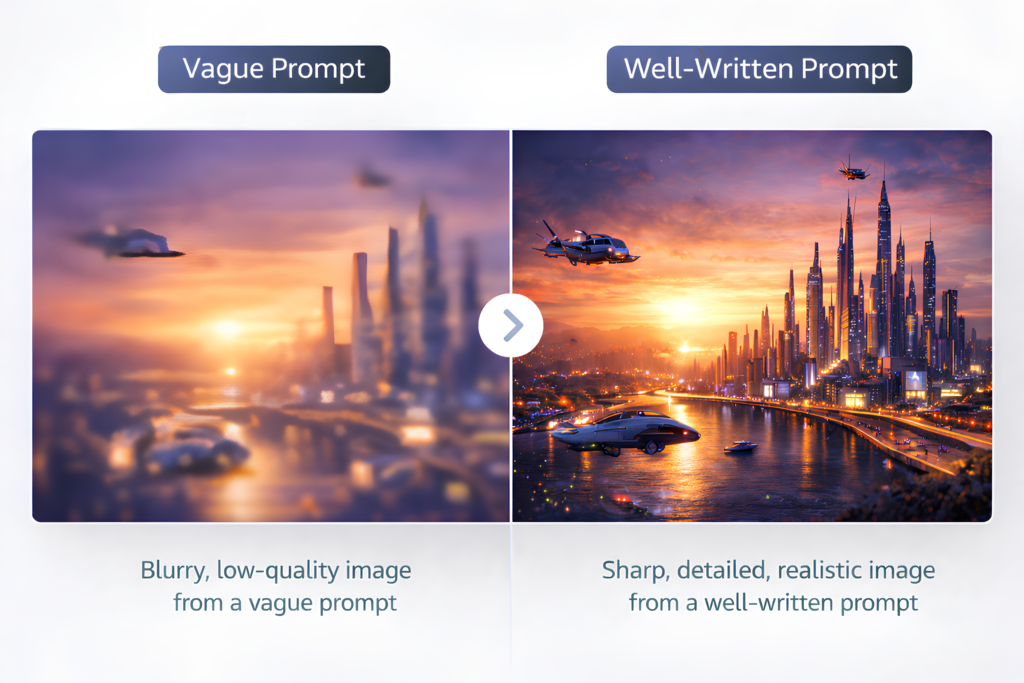
If there’s one skill that really makes a difference… it’s this.
Use this simple formula:
👉 Subject + Style + Details + Lighting + Quality
Example (Basic → Advanced)
Basic:
“a dog”
Better:
“a golden retriever sitting in a park”
Advanced:
“a golden retriever sitting in a park during sunset, soft golden lighting, ultra realistic, 4k”
You can actually see how the image would improve just by reading it.
Real Creator Example
“a shocked man looking at a glowing AI robot, dramatic lighting, YouTube thumbnail style, high contrast”
👉 This type of prompt works really well for thumbnails.
Quick Prompt Checklist
- What is the subject?
- What style?
- What environment?
- What lighting?
- What quality?
You don’t have to follow it perfectly every time… but it helps more than you think.
👉 If you want to go deeper, check your guide on how to write better AI prompts (great internal link opportunity).
If you want to improve your results, check our AI learning guides on our website.
⚠️ Beginner Mistake (Most People Do This)
Let me tell you something real…
When I first tried this, I typed:
👉 “cool image”
And yeah… the result was not great.
That’s when it clicked —
the tool isn’t the problem, the prompt is.
Once you start adding details, everything changes. And you’ll notice it almost instantly.

Real Use Cases (Where This Actually Helps)
Now let’s connect this to real-life situations.
1.YouTube Creators
Quick thumbnails without waiting for a designer.
2.PROJECTS
You can easily create images for your projects.
3.Students
Better presentations that actually stand out.
4.Freelancers
Some people are even selling AI-generated designs.
👉 This works especially well if you’re creating content — you can also explore your AI tools for content creation guide here.
Common Mistakes to Avoid (Don’t Skip This)
Let’s quickly go over what usually goes wrong:
Most beginners struggle with how to create images from text using AI for free because they focus on tools instead of improving their prompts.
❌ Vague prompts
Fix → Add details
❌ Expecting perfect results
Fix → Adjust and retry — that’s normal
❌ Ignoring style
Fix → Use keywords like “cinematic”
❌ Overcomplicating prompts
Fix → Keep it clear and readable
Pros and Cons of Free AI Image Generators (Honest Breakdown)
👍 Pros
- Free
- Fast
- No design skills needed
- Endless creative possibilities
👎 Cons
- Daily limits
- Sometimes weird results (extra fingers 😅)
- Not always HD quality
🔑 Key Takeaways
If you just remember this, you’re already ahead:
- Better prompts = better images
- Start simple → improve
- Bing is great for beginners
- Experiment a lot
- Don’t expect perfection instantly
FAQ
How to create images from text using AI for free?
Use tools like Bing or Craiyon to understand how to create images from text using AI for free, then write a prompt and generate images instantly.
Which tool is best for beginners?
Bing Image Creator — easy and high-quality.
Why are my images not realistic?
Your prompt likely needs more detail — especially lighting and style.
Can I use AI images commercially?
Depends on the tool. Adobe Firefly is generally safer.
Are these tools completely free?
Yes, but most have daily limits.
What is the best prompt format?
Subject + Style + Details + Lighting + Quality
Can AI replace designers?
Not completely… but it can save a lot of time.
Final Thoughts: Start Creating AI Images for Free Today
So yeah…
Creating images used to feel complicated. Now it’s surprisingly simple.
Once you understand how to create images from text using AI for free, it opens up a lot — creativity, content, even opportunities.
But honestly…
Reading about it is one thing.
Trying it is where it really clicks.
🚀 CTA
Go try this right now:
Open a tool → type your idea → generate.
Then tweak it once.
You’ll notice the difference almost immediately.
Author
Sumanth — AI Tools Researcher & Student Content Creator
Want more tools? Take a look at our website — we’re still working on adding the best ones for you.
We create the best guides around how to create images from text using AI for free.
Visit our website for more useful content.